


Make Any PDF Editable in Canva

Last week, I wrote about how Google's NotebookLM can be used to generate slide decks and infographics from your own specific sources. The downside is that these are essentially just static images that cannot be edited directly. In that post, I suggested using Canva's AI features to convert the images to editable text...so as promised, this week I'm going to show you how to do that!
To start, make sure you have your pdf file downloaded. I'll use my example from last week. Then go to Canva. Don't create a project - you'll want to upload the pdf instead. To do that, you have two choices. You can simply drag and drop your downloaded file anywhere into your Canva homepage:

Option 2 is to click the purple "+" in the top left corner of Canva and choose "Upload":

Once the file is in your uploads folder, you can simply click on it to open it in Canva. If you're lucky, the pdf will automatically recognize the text and allow you to edit it. In this specific case with my NotebookLM file, you will see that each page is just a single image. Click on the first page/image. In the toolbar at the top, you will see an "Edit" button. Click that to access the "Edit Image" sidebar:
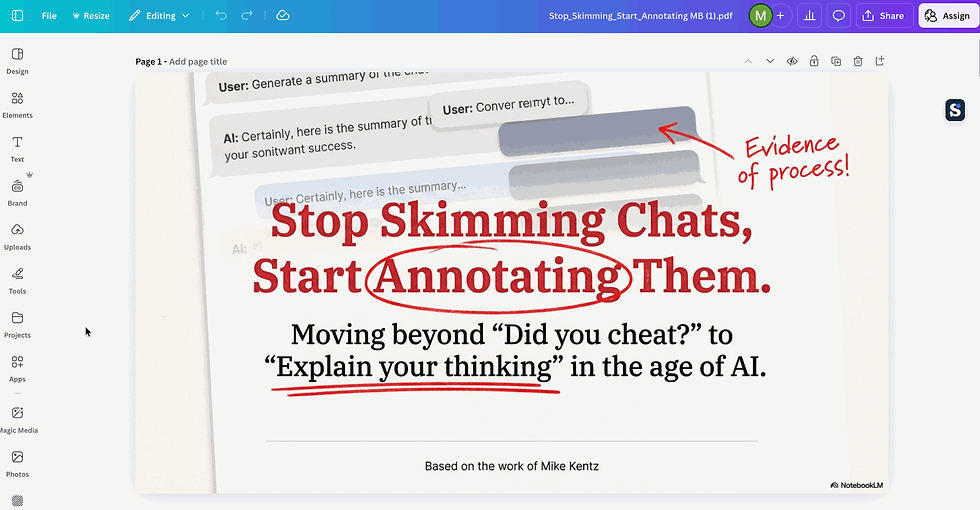
There are lots of ways to edit an image in Canva, but our focus today will be on giving us the ability to edit the text on the page. In the "Magic Studio" section of the Edit sidebar, click through until you find "Grab Text". At this point, Canva begins looking at the image and searching for what it believes to be text. Give it a second to load and then you will see that you have the option to convert specific sections or all of the text. If you choose "Click", you simply click on each box that you want converted. If you want everything, just click "All Text". Then click "Grab". Once it finishes, you will see that the text is now in textboxes and can be edited!
In my example, I'm only going to select the pieces that have weird AI generated text:

Now, one thing you may notice if you are a font nerd like me is that the new text may not match the old font exactly. This is because Canva is trying to match it as best it can to the fonts it has available. If you feel like there is too big of a difference, then a better choice might be to have Canva convert all the text so you can be sure the fonts match.
Now what about this page that dropped in random photos of these people?

Since these are square images, it's pretty easy - I can just copy and paste the real photos in on top of the fake ones. But to make it even cleaner, you can use a square image "frame", which can be found in the elements tab under "Frames". I can add a border like the ones above and then I can drag the real photo into the frame. That will ensure it covers the original completely.

If you're even more detail oriented and it upsets you that the red circles don't go over the image, you could always go find a red circle in the Elements tab or use the Tools tab to draw your own.
Feel free to explore Canva's other image editing AI tools to see what other changes you could make to your pdf file. It has the ability to erase sections, move things around, replace backgrounds, and more. Between these tools and Canva's regular features that allow for adding elements, text, and drawings, you should be able to customize your pdf to exactly what you need! When you're done, you could export it as a pdf again or you could actually run the presentation!
Comments