


Canva's Interactive Tools - March Madness Style

Over the last two weeks, to celebrate National Reading Month, we have been hosting a March Book Madness tournament with children's books. We set up both a bracket challenge (where people could predict the results):

And a daily poll where students and teachers vote on each matchup:

It's been a super fun event, all made possible through the magic of Canva! The bracket prediction system was created through Canva AI Code, which I wrote about last March. Basically, I described what I wanted it to do, and Canva created the code for me. What I created is a reusable system where I can see everyone's brackets, enter the results as we go, and see a complete and updated leaderboard. Users can even log back in and see their points and progress! Once we're finished, I can clear the results, enter new books and a new deadline, and start a new tournament next year. I can even see who picked each winner:
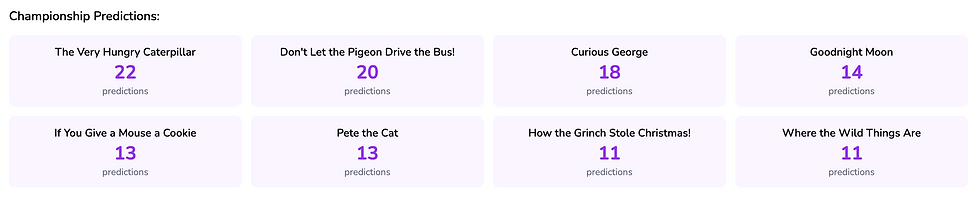
It was set up without any knowledge of coding - just me chatting with Canva about what I wanted and then what changes I wanted to see!
If that sounds too complicated for you...the voting piece was done in a much simpler way - just in a regular old Canva presentation slide. Did you know that you can add "forms" to your Canva slides? Perhaps you might want to use something like this to have students vote on something or guess answers. You can make the responses anonymous (which I did) or you can collect names (good if you want to be able to track things for giving credit or gauging understanding). The reason I chose to use Canva for this instead of a Google Form was so I could have all of the live results visible as soon as people voted. I was able to include 8 separate polls on one slide and I could control exactly what it looked like (unlike a Google Form).
You can find forms on Canva under "Elements":

There are a bunch of templates, but it doesn't matter which one you pick - you can customize the question types.When you insert it, click the "Edit" button at the top of the screen to customize:

In my case, I opted to use the "Poll", which doesn't require a submit button. I was able to put the two book choices in one poll and then copy that poll and change the titles. Then it can be shared out via a Public View link or just shared to your specific students with view access. You can see responses and clear responses. You can make copies of the project to use in other periods or other days. The possibilities are endless!
If you need support setting up either your own interactive activity through Canva AI Code or a form/poll through Canva Forms...just reach out! I'm happy to help explore!
Comments