


Recordings in Google Classroom

Google Classroom recently added a new feature that allows teachers to provide recorded content. This can be attached to assignments, it can be comments to students on assignments or uploaded documents, and it can also be just an announcement in the stream. This includes audio recording, video camera recording, and screen recording! As a former digital media teacher, I would love the ability to screen record and actually SHOW the students what I was talking about in my feedback. Maybe I scroll to a particular scene in their video project or zoom in on a part of their photo or graphic design and point out the things that worked well and the ways they could improve that specific piece of the assignment. It would be also be great for presentation assignments - just start recording and then click through each slide, speaking your feedback as you go. Even on writing assignments, you could highlight the text and speak to it instead of adding comments.
Beyond comments - being able to add a recording to an assignment can help students who might be absent or who were maybe not as engaged as they should have been or if they simply struggle with reading or understanding your assignments. In my world, I would consider attaching a quick screen recorded demo of me doing something in a digital tool so students would have access to it while working on it - sort of like a mini tutorial. It could be a verbal description of the assignment or it could be you recording yourself walking through the requirements that might be on a document that is also attached to the assignment.
These options are great ways to support all of your students. Maybe some students prefer your written feedback, but others want to hear the audio recording, and another group wants you to speak while scrolling through or highlighting their work. It is the same amount of time for you as a teacher to provide the feedback because it is all right there in Google Classroom, but it gives you the ability to differentiate your feedback. And likewise, though it might take a bit longer, providing audio/video instructions to go along with written instructions could make a huge difference for visual or auditory learners. Just make sure to keep all of your recordings at a reasonable length so students will be willing to listen!
So how does it work? You will see a record button in a variety of locations in Google Classroom. In assignments/materials, it's in the "Attach" section:

When you have an assignment open to edit, you will see some extra buttons in the "Private comments" section. This goes between written, audio, video, and screen recorded comments:
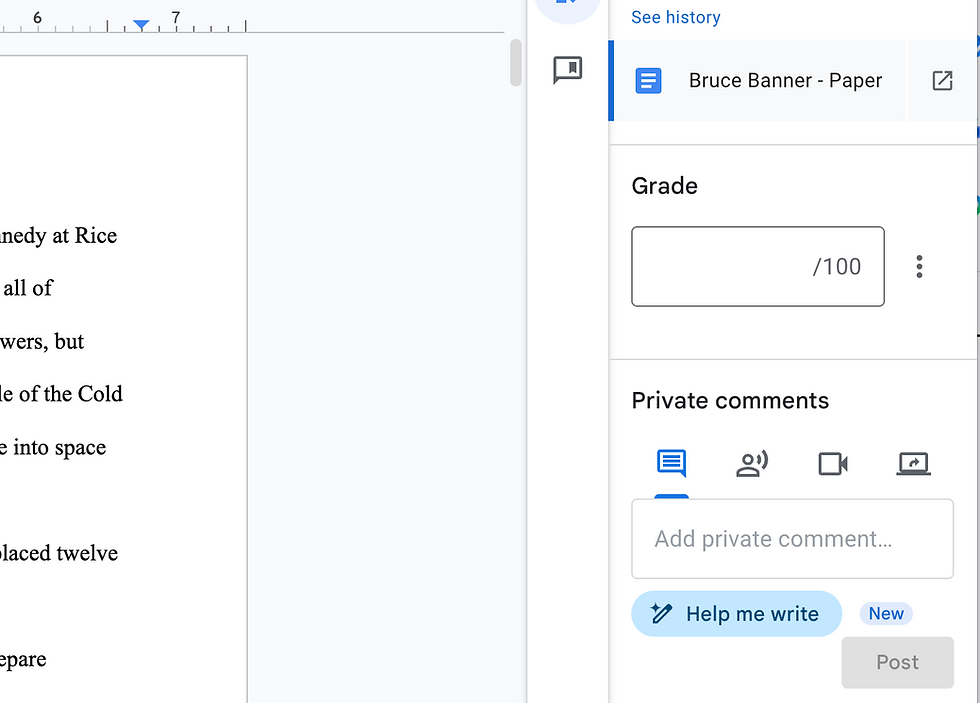
If you are in the Student Work tab, you will see a small record button next to the "Add private comments" field:

Once you complete the recording, it attaches to the assignment/material/announcement and also saves to your Google Drive. In Drive, it goes into your Google Classroom folder for the class and assignment, so this one is located in "Classroom > DLS Test Class > Paper". If it is something in the stream, it will be saved to just the class folder, not to a particular assignment. For students, they will see the video/audio file and be able to click to open it in a new tab to watch/listen. It does not (currently) play directly inside of Google Classroom.
Comments